12 · CW, RTTY and FT8 Studios
Decode and transmit inside RadioLog — features in testing (beta)
What they are
From the CW & Digital menu you open three windows that decode and transmit without any other program. They share the sound card, the PTT and the look, so what you learn in one works in the others. They do not replace the WSJT-X and JTDX integration of chapter 4, which keeps working as before.
| Studio | What it does | Needs |
|---|---|---|
| CW Studio | Decodes several CW stations at once and transmits CW (free text and F1–F8 macros). | Sound card. To transmit: a serial port for the key (DTR/RTS) through an interface. |
| RTTY Studio | Decodes and transmits RTTY (macros 1–8, contest exchange). | Sound card and PTT. |
| FT8 Studio | Receives and transmits FT8 with an automatic QSO sequencer, colours for new stations and automatic logging. | WSJT-X installed (its decoder is used), sound card, PTT and the clock on time. |
Before you start (common to the three)
1 — The sound card
In Settings → Digital Modes ("Studios audio") choose the audio input (the one that receives from the radio), the audio output (the one that goes to the radio) and the output volume. With a USB radio it is usually called "USB Audio CODEC". In each window, Settings ▾ → Audio and sound cards… takes you straight to that section. The Input level bar of each window should move without hitting the end.
2 — PTT and the radio port
In Settings → Radio / CAT → "Radio output (port, PTT and key)" you choose the serial port and the PTT method: None / VOX, RTS line, DTR line or by CAT. The delays ("before" 150 ms and "after" 100 ms by default) give the radio time to switch to transmit. The port is a single one for all the Studios: you do not need to disconnect one to use another. The Test PTT (1 s) button transmits for one second: use it with a dummy load.
RPTT SELECT = RTS.
3 — The radio's mode
Put the radio in the right mode before you start: DATA-U / USB for FT8 and RTTY through audio, CW for CW. RadioLog does not change the radio's mode by itself (in FT8 Studio you can choose, in Settings → FT8 Studio → "Working frequencies", whether it sets it when you change band).
4 — The exact time (important in FT8)
FT8 works in 15-second turns and needs the clock within 1 second. In Settings → General → Time, correction with internet time servers is on by default: RadioLog uses the corrected time in its windows and in QSO times, without ever changing the Windows clock.
5 — Testing without a radio
- CW Studio and RTTY Studio have the Test signal (simulated) box: press Start and you will see text and waterfall without a radio.
- The three windows can decode a WAV file with Open recording… and record what you hear with Record (folder with the Folder button).
6 — The button colours
In the three Studios: green = the main action (Start, Transmit, Send), red = stop, blue = the other actions, violet = Tune and Pause. A grey button with a marked border is disabled. "Start" becomes "Stop" (red) while you listen.
CW Studio (beta)
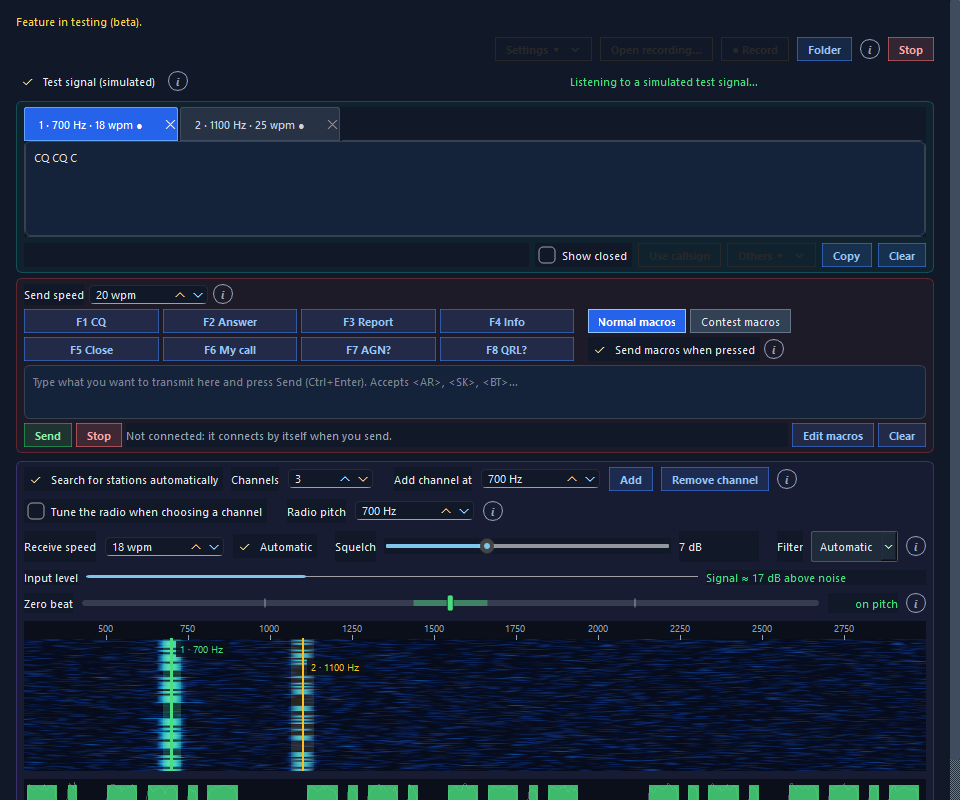
Listening
- Menu CW & Digital → CW Studio (beta), then press Start.
- With Search for stations automatically the window finds CW signals and opens a channel (a tab) for each one, with its tone and speed. You can limit how many channels (Channels), add one by hand at a tone (Add channel at and Add) or click a station's signal in the waterfall: that tone is decoded, or its channel is selected if it already exists.
- Zero beat: the bar shows how far the chosen station is from the radio's tone. With Tune the radio when choosing a channel, RadioLog moves the radio's frequency to put it on tone.
- The Squelch and the Filter help with noise; the receive speed is on Automatic.
- Use callsign sends the callsign you see in the text to the QSO Entry.
Transmitting
- Set up the key in Settings ▾ → CW Studio…: the line that presses the key (
DTRorRTS) and the 8 macros. The port is the one in Radio / CAT → Radio output. - Type in the box and press Send (Ctrl+Enter), or press a F1–F8 macro. Right-click a macro (or Edit macros) to change it. It accepts
<AR>,<SK>,<BT>and variables such as{CALL},{MYCALL},{RST}and{NR}. - There are two macro sets: Normal macros and Contest macros. With Send macros when pressed ticked, F1–F8 transmit immediately; unticked, they only copy their text to the box for you to review and send.
- Stop cuts the sending at once. The Send speed is independent of the receive speed.
RTTY Studio (beta)
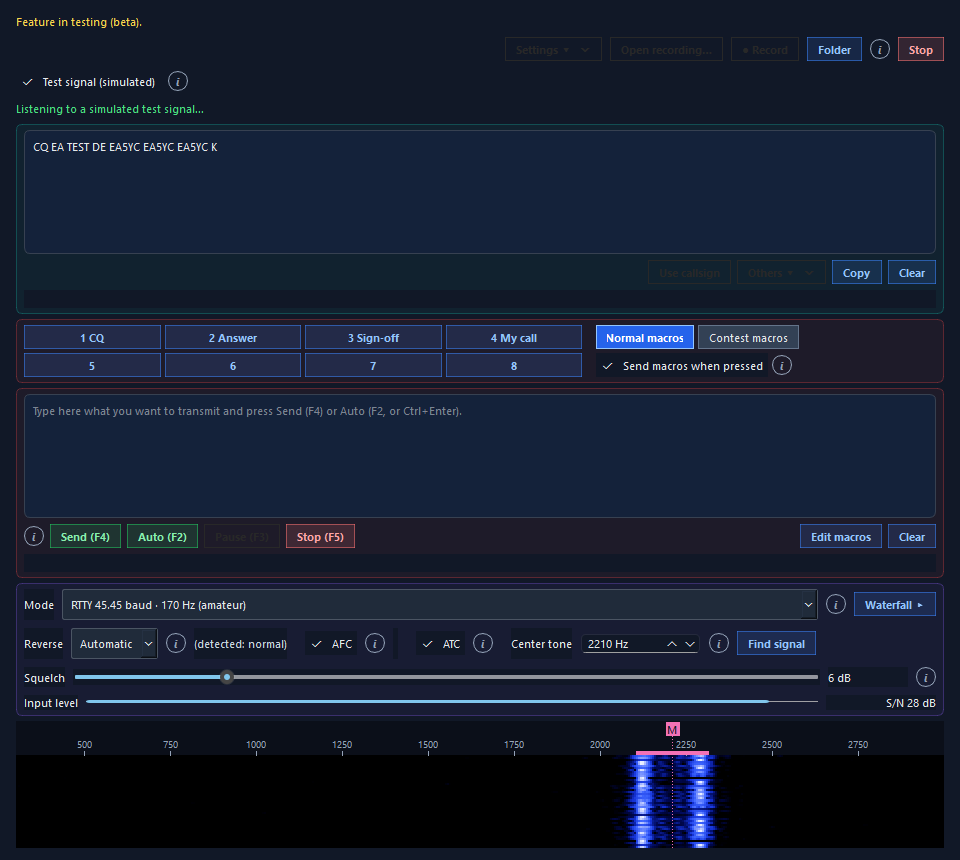
Receiving
- Menu CW & Digital → RTTY Studio (beta) and Start.
- Mode: speed and shift (RTTY 45.45 baud, 170 Hz by default). Reverse: on Automatic it detects an inverted signal. AFC follows drift and ATC (optional) helps with noise and fading.
- Center tone sets the tone; Find signal looks in the last seconds of audio for the two tones separated by the shift and puts the center tone there (the signal has to be playing). Waterfall ▸ shows or hides the waterfall, where a click sets the tone.
- With a right-click on the text you can use a callsign or a contest exchange as the received RST and data.
Transmitting
- It needs PTT set up (step 2 of "Before you start").
- Type in the transmit box and press Send (F4): it switches to transmit and keeps transmitting until you press Stop (F5). Auto (F2) sends the text and, when it is finished, goes back to receive by itself. Pause (F3) pauses or resumes the sending (the PTT stays on).
- The macros 1–8 (also Alt+1…8) have two sets, normal and Contest; right-click or Edit macros to change them. With Send macros when pressed ticked they are sent at once and, when done, you go back to receive; unticked, they only copy their text to the box. What has already been sent is struck through.
- In contests, the QSO Entry has two fields next to the RST (Exch. sent and Exch. rcvd): they are saved with the QSO and exported in the ADIF.
FT8 Studio (beta)
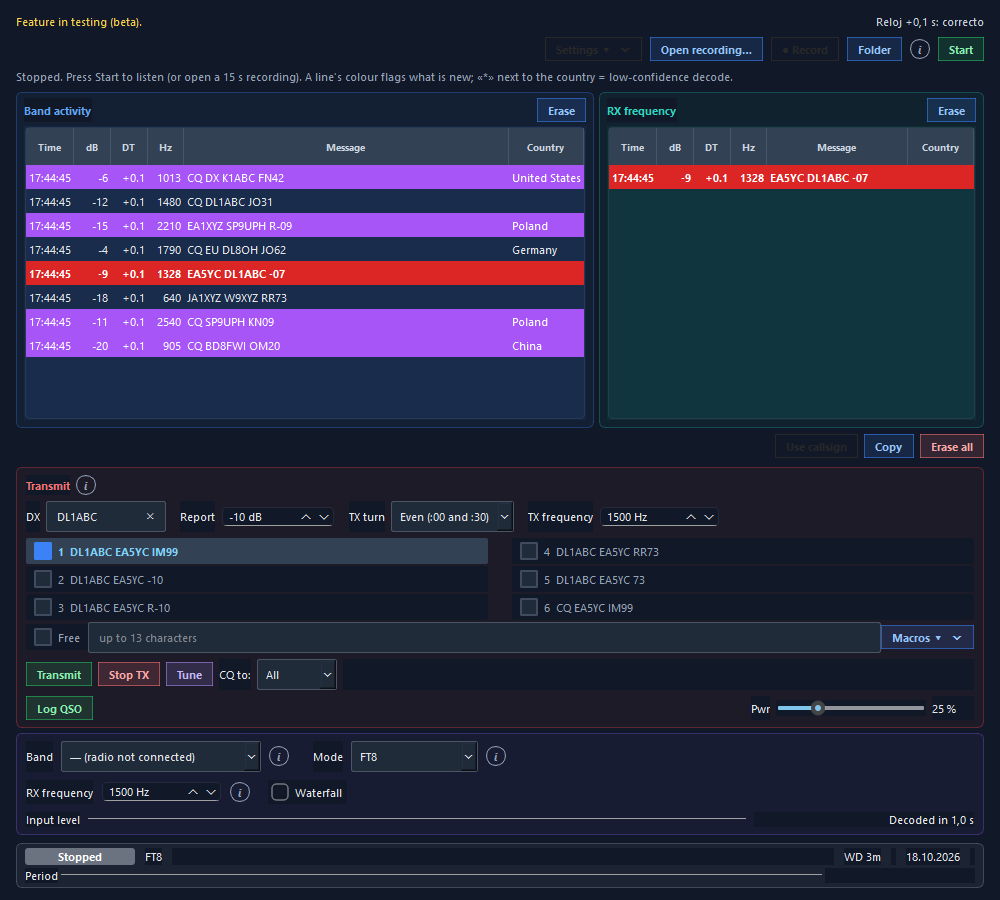
Getting it running — step by step
- Install WSJT-X (RadioLog uses its decoder
jt9.exe; it does not include it). In Settings → FT8 Studio → Decoder press Search (or Browse… and choose the WSJT-X folder). When the status turns green, it is ready. - Check the sound card, the PTT, the radio's mode and the time ("Before you start").
- Open CW & Digital → FT8 Studio (beta) and press Start. Choose the Band from the list: with the radio connected over CAT, RadioLog puts it on the FT8 frequency (★ = standard frequency). The table is edited in Settings → FT8 Studio → "Working frequencies" (the JTDX/WSJT-X
.qrgcan be imported and exported). - Every 15 seconds the decoded signals appear in Band activity; in RX frequency, what is on your receive frequency and what is addressed to you.
Reading the list
- Red: someone is calling you. A beep sounds (you can turn it off).
- Blue: the station you are in QSO with.
- Colours for what is new: DXCC, CQ/ITU zone, grid, prefix and callsign; you choose them (and whether they beep or pop up) in Settings → FT8 Studio → New-station alerts. A station on your Wanted list is shown in magenta.
- An * before the country: a low-confidence decode.
- Right-click a line: delete the line or the list. Erase empties that list; Erase all, both.
Making a QSO
- Calling a station: double-click its line. RadioLog fills in its callsign, the report, the turn opposite to theirs and their frequency, and starts calling. (Shift+double-click moves only the TX frequency; Ctrl+double-click, both.)
- The sequencer (AutoSeq) carries on the QSO by itself: report, confirmation (RR73) and 73, repeating each step as many times as you set. It stops if the other station answers someone else, and warns you if there is no answer.
- Calling CQ: choose message 6 (CQ) and press Transmit; it answers the strongest station that replies. The CQ to: selector allows directed CQs (DX, NA, EU…).
- When it ends, the QSO is logged by itself (you can also choose to be asked, or not to log it) with the band, frequency and time. Log QSO saves it by hand whenever you want.
Transmitting and safety
- Transmit / Stop TX: "Stop TX" cuts the audio and releases the PTT at once. TX turn is even or odd: it must be the opposite of the station you call.
- Tune sends a carrier (30 s at most) to adjust the antenna tuner. Pwr is the audio output level, remembered per band and mode: set it without going over on ALC.
- TX watchdog: if you touch nothing for 3 minutes (configurable) while something is armed, RadioLog stops the transmission. Any click or key restarts it.
- Free and Macros ▾: short messages of up to 13 characters with variables (
^name,@DX callsign,$your callsign,&your base callsign,#report).
Everything set once, in Settings → FT8 Studio
| Group | What it holds |
|---|---|
| Decoder | WSJT-X folder and decoding depth. |
| Working frequencies | Table per band, IARU region, radio mode. |
| Transmission | TX watchdog, maximum Tune time, "TX same as RX". |
| Sequencer | AutoTX, AutoSeq, repeats of each step, RR73 or RRR, skip the grid, strict directional CQ, QSO logging. |
| Free-text macros | Your list of short messages. |
| New-station alerts · Wanted | What is highlighted, in what colour and whether it beeps. |
| Decode list | Filters (CQ only, hide continents, countries…), stations already worked (strike through, underline, hide), distance and bearing, blank line between turns. |
| List colours | Colours of your transmissions, of whoever calls you and of your QSO. |
Almost every control has a short help on mouse-over and an i icon with more detail.
Troubleshooting
| Symptom | What to check |
|---|---|
| Nothing appears and the level bar is empty | The audio input in Settings → Digital Modes; that the radio is in DATA-U/USB with USB audio on; the Windows input volume. |
| FT8: "WSJT-X not found" | Settings → FT8 Studio → Decoder → Search or Browse…. |
| FT8 decodes little or nothing | The clock: turn on time correction (Settings → General → Time). The input level: the bar should move without hitting the end. |
| Audio comes out but the radio does not switch to transmit | PTT in Radio / CAT (use "Test PTT" with a dummy load). On the FTDX10: "Standard COM Port" and RPTT SELECT = RTS. |
| The radio stays transmitting | Press Stop TX. RadioLog releases the PTT when the window is closed and after the PTT's maximum safety time. |
| Too much power or high ALC | Lower Pwr (FT8) or the output volume in Digital Modes. |
| "Port busy" | Another program has the radio port. The Studios share it with each other, but not with outside programs. |
| FT8 will not let you transmit a message | For now, compound callsigns (for example EA/DL1ABC) and those starting with Q cannot be sent. |