02 · Logging QSOs
Main logbook, QSO entry, search and filters
The Main Logbook
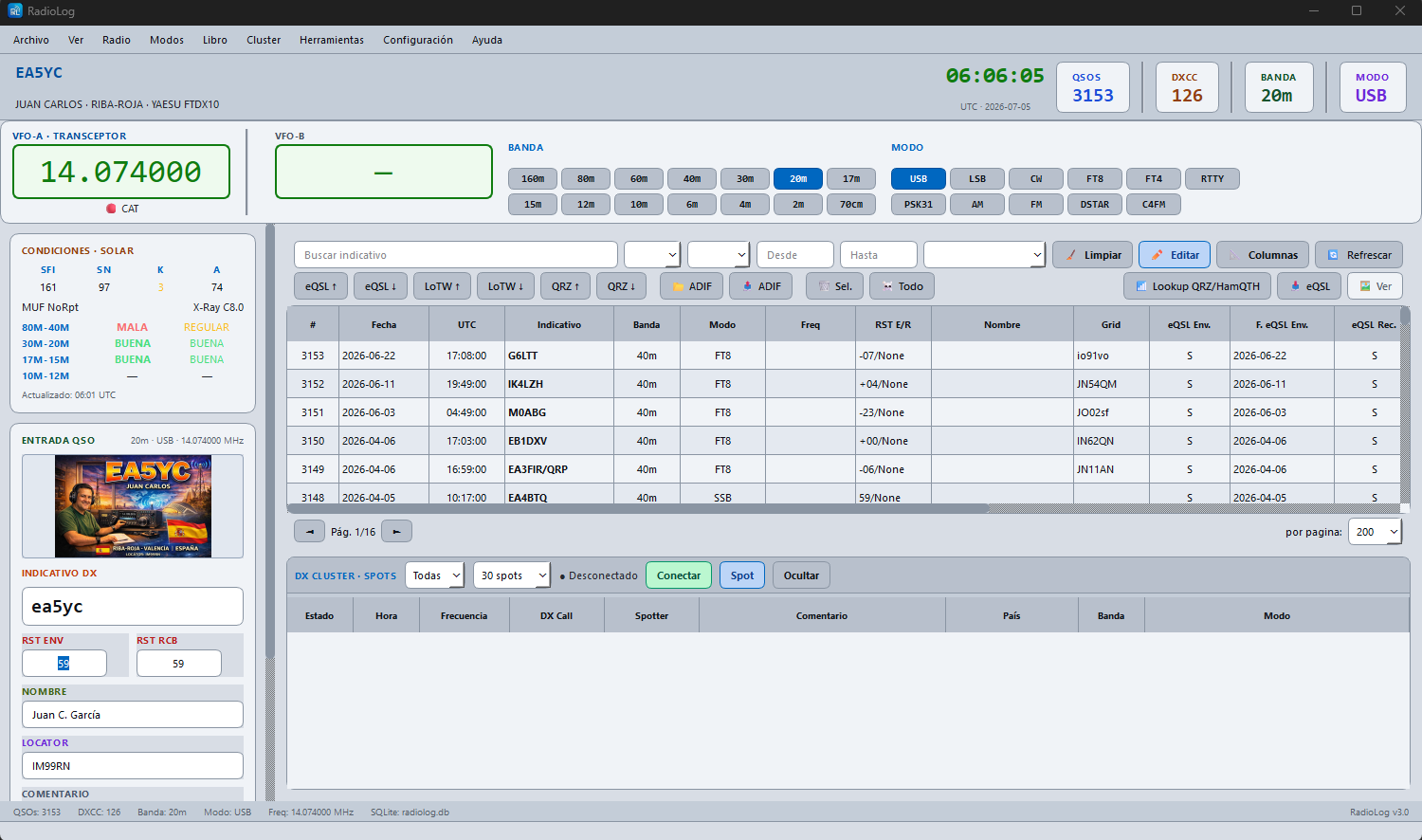
The Logbook tab shows all your QSOs. The table occupies most of the screen and updates in real time as you enter data in the capture panel.
Logging a New QSO
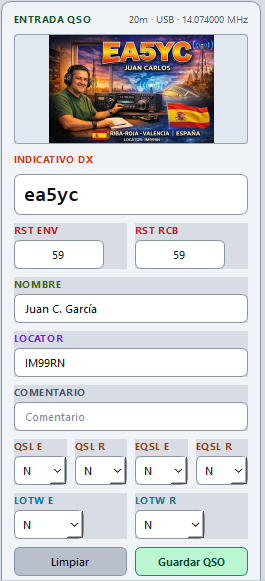
The capture panel is on the side or bottom of the window. Use Tab to move between fields and Enter to save.
QSO Fields
| Field | Description | Notes |
|---|---|---|
| Callsign | Callsign of the contacted station | Automatic lookup triggered on leaving the field |
| Date | UTC date of the QSO | Default: today |
| Time | UTC time of the QSO | Default: now |
| Band | Operating band | Syncs with CAT if connected |
| Mode | Emission mode (SSB, CW, FT8…) | Syncs with CAT |
| Frequency | Frequency in MHz | From CAT if connected |
| RST Sent | Signal report sent | Default 59 / 599 depending on mode |
| RST Rcvd | Signal report received | |
| Name | Contacted operator's name | Filled by automatic lookup |
| Locator | Contacted station Grid Square | Filled by automatic lookup |
| Comment | Free notes for the QSO |
Press Enter or the Save QSO button to add it to the logbook. The panel clears ready for the next contact.
Automatic Lookup
When leaving the Callsign field, RadioLog queries QRZ.com or HamQTH (as configured in Settings → Lookups) and fills in the name and locator automatically.
Bulk QRZ/HamQTH Lookup
The 📶 Lookup button in the logbook toolbar fills in name, locator and country by querying QRZ.com or HamQTH, but for several QSOs at once instead of just one:
- With a row selection in the table, it only fills those QSOs.
- With no rows selected, it automatically processes every QSO in the log whose Name field is empty — handy after importing an ADIF from another logger that didn't include that data.
It asks for confirmation before starting (showing how many QSOs will be queried), and shows progress in the status bar while it processes them one by one, with a short pause between queries to avoid hammering the service.
Previous Contacts with this Callsign (new in v3.4.0)
While you type a callsign in the capture panel, a Previous contacts with the DX panel below the logbook table shows your QSO history with that station — handy for checking a past report or which of your own callsigns you used with them last time. It only appears in the Logbook tab, next to the DX Cluster panel, and both panels can be resized or collapsed.
| Column | Shows |
|---|---|
| Date / UTC | When the previous QSO took place |
| Band / Mode | Band and mode of that contact |
| RST | Sent/received report, e.g. 59/57 |
| My callsign | Your own callsign (STATION_CALLSIGN) used in that QSO — useful if you log under more than one callsign |
The panel updates as you type, once you've entered at least 3 characters. If there are no earlier contacts with that callsign, it simply shows "No previous contacts". It is read-only — double-click a row in the main logbook table to edit a QSO.
Editing an Existing QSO
Double-click any logbook row to open the edit dialog, or use the ✏️ Edit button in the toolbar. You can also use the context menu (right-click on the row) → ✏️ Edit.
Deleting QSOs
Select a row and use the context menu (right-click) → 🗑 Delete. Confirmation will be requested before deleting.
Deleting All QSOs
The ☠ All button in the logbook toolbar deletes every QSO in the log at once, regardless of how many are currently loaded or filtered on screen.
Bulk Fill My Station
The 🏠 My Station button fills in your own station data (callsign, name, QTH, locator, equipment, antenna…) in bulk for QSOs that don't have it — typical of logs imported from another program that didn't export those fields, or QSOs logged before you filled in your profile under Settings → My Station. It only fills empty fields: it never overwrites data a QSO already has.
Search and Filters
Filters are always visible in the bar above the table and apply in real time.
| Filter | Function |
|---|---|
| Callsign | Search by callsign (partial or full) |
| Band | Dropdown with all bands |
| Mode | Dropdown with all modes |
| Date from / to | Date range in YYYY-MM-DD format |
| Confirmation | Status: QSL sent/received, eQSL, LoTW |
To clear all filters at once use the 🧹 Clear filters button in the toolbar.
Logbook Context Menu
Right-click on any logbook row:
- ✏️ Edit QSO
- 🗑 Delete QSO
- 📥 Import ADIF
- 📤 Export ADIF
Logbook Columns
Use the 📐 Columns button in the toolbar to show or hide columns. Column order and width are saved automatically between sessions.
Duplicates
RadioLog warns if the callsign already appears in the logbook on the same band and mode. You can still save if the duplicate is intentional.