
01 · Getting Started
Installation and initial station setup
Installation
RadioLog is distributed as a Windows installer, downloaded as a compressed file (.zip) from the download page. Unzip it, double-click the installer and follow the wizard. No Python or dependencies required — everything is included.
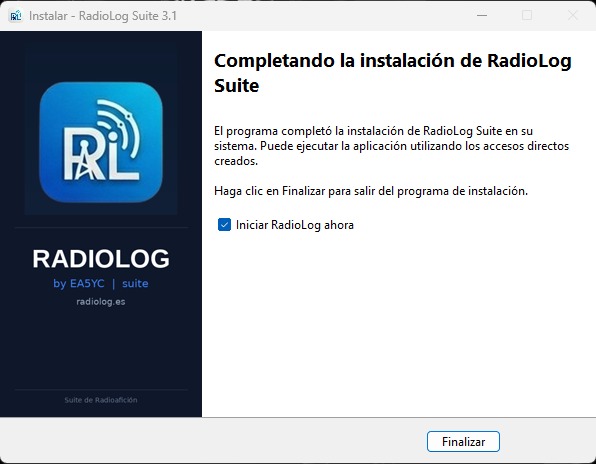
After installation you will find:
- Desktop shortcut: RadioLog
- Start menu entry: RadioLog
- User data folder:
%LOCALAPPDATA%\RadioLog\
First Run — Setup Wizard
The first time you launch RadioLog the First Run Wizard appears. It guides you through the minimum settings needed for the application to work correctly.
Station Data
Enter your callsign, name, locator and city. This data appears in ADIF/Cabrillo exports and on the QSO screen.
| Field | Example | Description |
|---|---|---|
| Callsign | EA5YC | Your amateur radio callsign |
| Name | Juan Carlos | Operator name |
| Locator | IM98wq | Maidenhead Grid Square (6 characters) |
| City | Valencia | City / station locality |
| Country | Spain | Country (dropdown with full list) |
Station Configuration
Once the wizard is complete, adjust settings at Settings → Station. Settings are divided into several sections:
General Section
| Setting | Description |
|---|---|
| Callsign | Main station callsign |
| Locator | Grid Square (for distance and propagation calculation) |
| QTH | City / station locality |
| Transceiver | Transceiver description (free text) |
| Antenna | Antenna description (free text) |
| Power | Watts, applied to new QSOs if not from CAT |
Lookups Section (QRZ / HamQTH)
RadioLog can automatically complete QSO data by querying QRZ.com or HamQTH databases.
- Go to Settings → Lookups
- Choose your preferred service (QRZ.com or HamQTH)
- Enter your username and password
- Click Test Connection to verify
Visual Theme
RadioLog includes three predefined themes changeable at Settings → Appearance → Theme. The active theme is saved in %LOCALAPPDATA%\RadioLog\user_colors.ini.
| Theme | Description |
|---|---|
| Dark Blue | Dark background with blue accent — the default. Ideal for low-light shack use. |
| Dark | Dark background with green accent. Alternative for those preferring a different tone. |
| Light | Light background in Windows Fluent style. For use in bright ambient light. |