08 · DX Cluster
Connecting to the cluster, spot filters, and DX alerts
What is the DX Cluster?
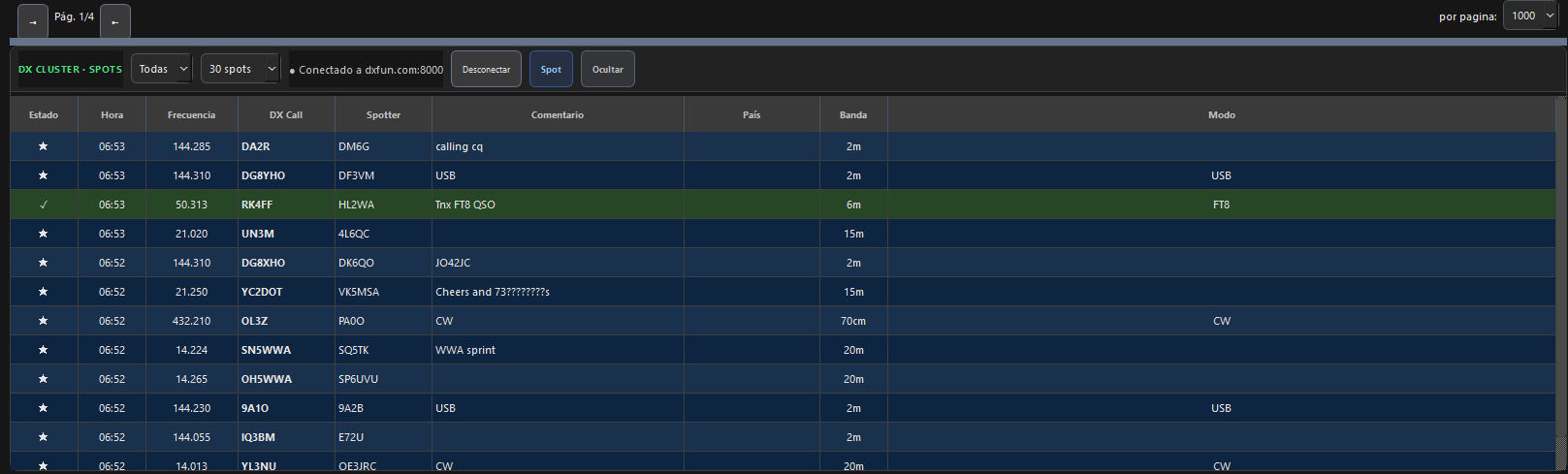
The DX Cluster is a worldwide network of nodes that distributes spots in real time: announcements of rare or interesting stations heard by radio amateurs around the world. Each spot shows the frequency, callsign, and time of the DX.
Showing the DX Cluster Panel
Enable the panel from View → DX Cluster (checkable item) or with the Show/Hide DX Cluster button in the top toolbar. Once visible, connect with Cluster → Connect.
Connection Settings
| Parameter | Description | Example |
|---|---|---|
| Server | Cluster node address | dxc.ea4ure.amsat.es |
| Port | Telnet port of the cluster | 7300 |
| Callsign | Your callsign for login | EA5YC |
Recommended cluster nodes
dxc.ea4ure.amsat.es:7300— EA4URE (AMSAT-EA, Spain)cluster.eb1hys.org:7300— EB1HYS (Spain)telnet.reversebeacon.net:7000— Reverse Beacon Network (CW/RTTY)dxc.w6cua.net:7300— W6CUA (USA, low global latency)
The Spot Table
Each spot shows:
| Column | Description |
|---|---|
| Time | UTC time of the spot |
| DX | Callsign of the DX station |
| Frequency | Frequency in kHz |
| Band | Amateur band |
| Mode | Emission mode (if specified) |
| Spotter | Callsign that posted the spot |
| Comment | Spotter's free text |
| Country | DXCC entity of the DX callsign, calculated automatically by RadioLog |
| Status | Worked/confirmed/new (based on your logbook) |
Locking the panel and columns
The lock-icon button in the panel header freezes the panel width and every column width exactly as you left them. While locked, neither resizing the window nor an accidental drag will change those widths; to adjust them again, unlock, resize what you need, and lock it back. The state is remembered between sessions.
Spot Status
RadioLog compares each spot against your logbook and marks it with a symbol:
| Symbol | Status | Meaning |
|---|---|---|
| ★ | New | Never contacted — new entity for you |
| ▽ | Worked | Already contacted, but no QSL/LoTW confirmation yet |
| ✓ | Confirmed | You have a QSL or LoTW confirmation on that band/mode |
| — | Normal | No special relation to your logbook |
Spot Filters
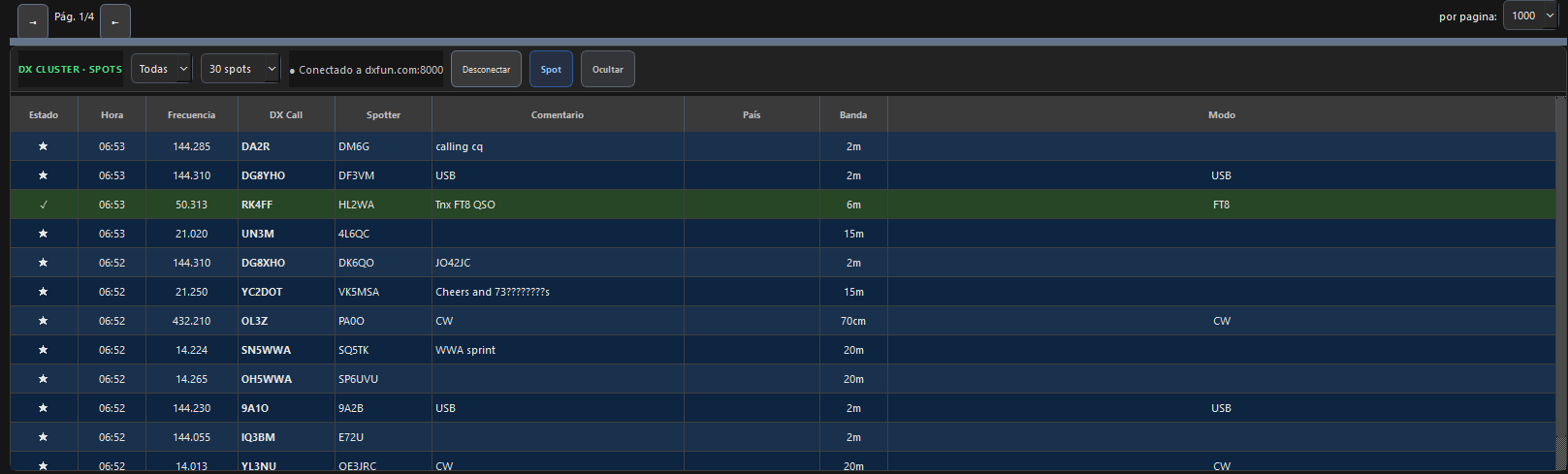
The cluster panel toolbar includes two filters:
- Band — Show only spots on the selected band (or «All»)
- Count — Number of spots displayed: 30, 50, or 100
From Cluster to Radio
With CAT connected, double-click any spot in the cluster to tune the radio automatically to the DX frequency. RadioLog changes VFO-A frequency and the corresponding mode.
Sending Spots to the Cluster
If you hear a DX station you can post a spot from RadioLog:
- Enter the DX callsign and frequency in the spot panel
- Add an optional comment
- Click Send spot