
DX Cluster
Know what is worth calling before you call
- Every spot is compared with your logbook: ★ new entity, ▽ worked but unconfirmed, ✓ confirmed.
- With CAT connected, a double-click on the spot tunes your radio to that frequency and mode.
- When you connect, RadioLog asks for the latest spots and fills the table at once.
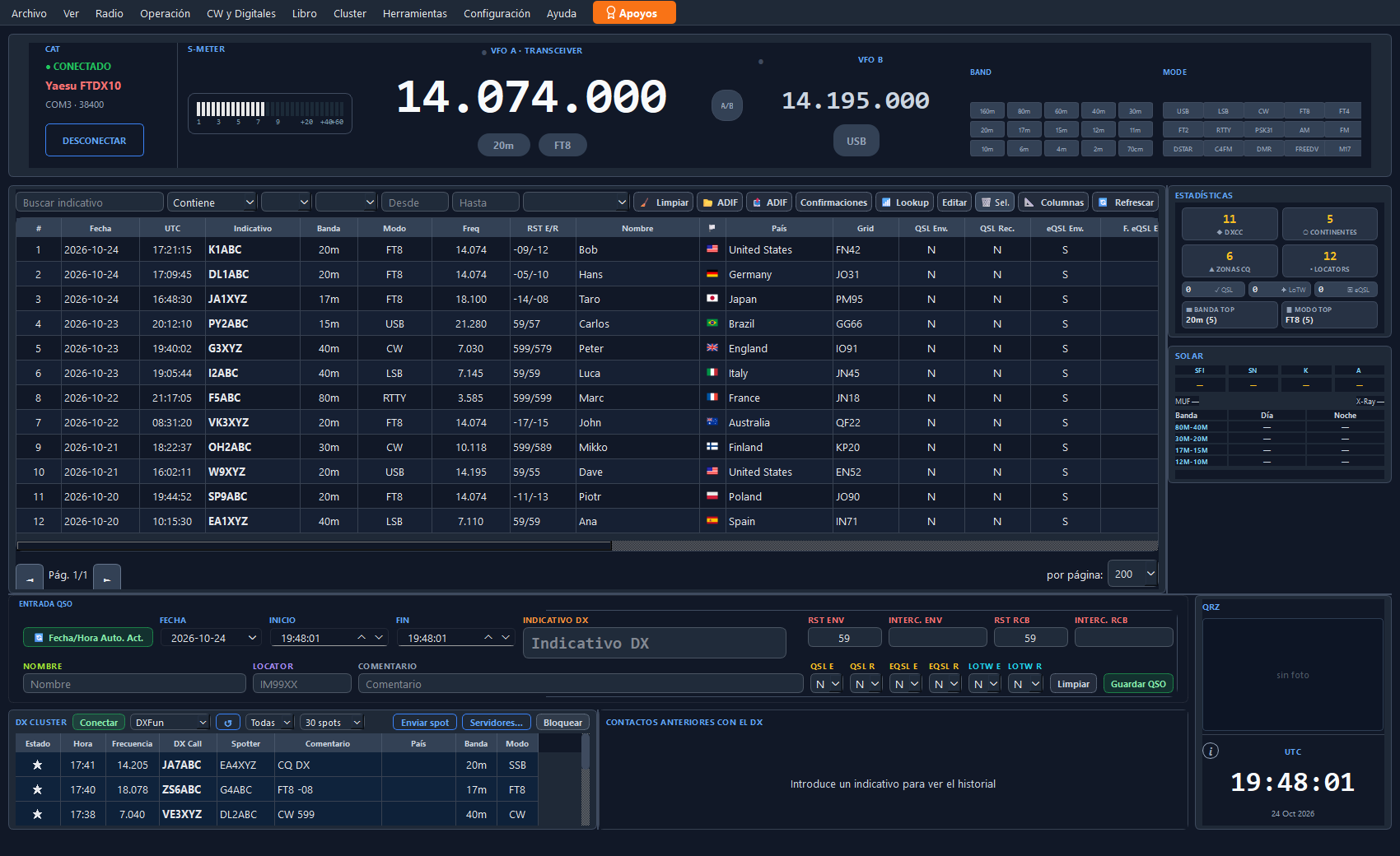
The DX Cluster panel, below the logbook.
What it includes
In detail
Status of every spot
New, worked or confirmed according to your logbook and the spot's band and mode.
Double-click to tune
RadioLog changes the VFO-A frequency and the mode, without touching the radio.
Filters
By band and by number of visible spots (30, 50 or 100).
Lockable panel
A padlock fixes the width of the panel and the columns; it is remembered between sessions.
Send your spots
Tell the cluster about a DX you hear; if the server rejects it, you are shown why.
Undock and dock
The cluster panel and the previous-contacts panel can be undocked into their own window or put back in the main panel.
Getting started
In four steps
- Choose the serverIn Settings → Cluster, your usual server.
- ConnectPress Connect in the panel; spots start to arrive.
- Read the symbols★ means new for you.
- TuneDouble-click the spot, with the radio connected.
Try it, it's free
Windows 10 and 11, 64-bit. It installs in a minute and needs no registration.
⬇ Download RadioLog v4.1.0